Regions, licensors & brands
This page covers the reference data that a contract draws on. Regions define where goods ship from and to, the two sides of a royalty rate. Licensors own the licensed IP. Brands group items so that one rate can apply to many products. Set these up before you create contracts. See Contracts.
Origin regions — the ship-from side
An Origin Region groups the Business Central Location Codes you ship product from. Open RoyaltyCentral → Origin Regions. Add a code and a description. Then use the Locations action to assign the locations that belong to the region.
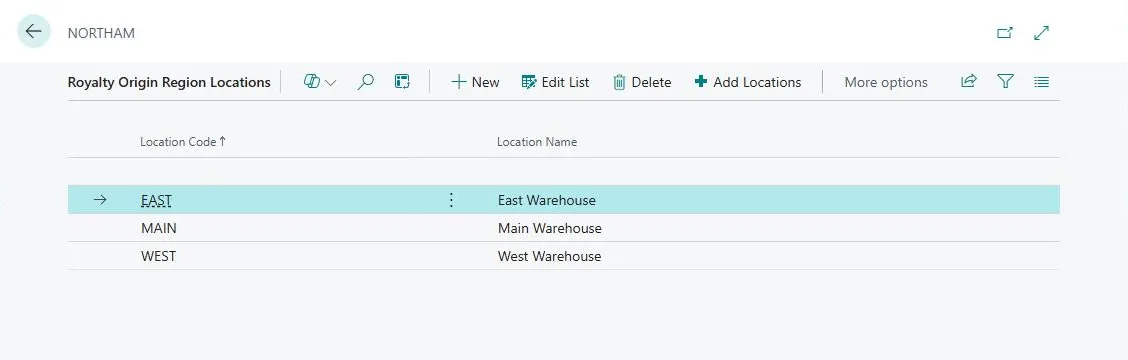 Figure: an Origin Region with its assigned location codes.
Add many locations at one time
You can assign many locations to an Origin Region in one step.
- Open Origin Regions and select the region.
- Choose the Locations action.
- Choose the Add Locations action.
- On the Locations list, select one or more locations.
- Choose OK.
A message shows how many locations the action added. The action does not add a location again if it is already in this region. It skips a location assigned to a different region, and the message shows how many it skipped. To add the blank location, add a line by hand, as described below.
- On a posted sale, the app resolves the Origin Region from the sales document’s inventory Location (where the goods shipped from). Assign every location you ship from to a region.
- A Location Code can belong to only one Origin Region.
- An organization that does not use locations still needs one Origin Region for the blank location. Create the region. Open Locations and add a line. Leave the Location Code empty. A sale that carries no location then resolves to that region.
A region with no Locations line does not match. The calculation resolves the origin region from the location on the sale. If no line covers that location, the blank one included, the sale gets no royalty entry. The demo data shows the pattern with its
BLANKregion.
How many you need. One region is usually enough. Add more only when a licensor charges a different rate by ship-from location. A domestic warehouse and an overseas warehouse is the usual example.
Sell regions — the ship-to side
A Sell Region groups the Business Central Country/Region Codes you sell to. Open RoyaltyCentral → Sell Regions. Add a code and a description. Then use the Countries action to assign country codes.
- On a posted sale, the app resolves the Sell Region from the Sell-to Country/Region Code on the royalty entry. The app copies that code from the item ledger entry of the posted sale. Keep the customer country codes filled in. The calculation needs them.
- A Country Code can belong to only one Sell Region.
How many you need. Group the countries by how the licensor charges. Use one “North America” or “EU” region rather than a line for each country. Add more than one Sell Region only when the rates differ by destination.
Licensors
A Licensor is the entity that owns the license. It holds a code, a name, and contact details. Open RoyaltyCentral → Licensors. Create one licensor for each rights-holder.
Create a licensor even if a vendor already exists for the rights-holder. The licensor is the owner of the IP. It is kept separate from the party you pay. The paying party is a Payee. A payee can be an agency or an estate, and it can change over time, while the licensor stays the same.
Each licensor needs at least one brand.
Licensor Statistics FactBox
The Licensor Card and the Licensor List show a Licensor Statistics FactBox. The FactBox aggregates the royalty activity across the licensor’s contracts:
| Row | Shows |
|---|---|
| No. of Contracts | The number of contracts for the licensor, in any status. |
| Sales Amount | The total sales amount recognized from royalty entries. |
| Royalty Amount | The royalties calculated from sales. |
| Payment Amount | The total of the Payment, Minimum Guarantee, and Advance entries. |
| Amount Due | The remaining royalty amount due after payments. |
Select No. of Contracts to open the contract list filtered to the licensor. Select an amount to open the Royalty Entries that make up that amount.
Brands & sub-brands
A Brand is a group of items that belong to a licensor. It lets one contract line rate many products at one time. From the licensor, open Brands. Add a brand. Then use the Items action to assign items and item variants. You can also add Sub Brands under the brand and assign the items to them.
- A contract line can rate at the brand, sub-brand, or item level. The hierarchy gives you flexibility in how granular a rate is.
- Sub-brands can nest. One or two levels is usually enough.
Organize brands by rate. Group the items that share the same rate into one brand or sub-brand. Put the items with different rates on separate brands or sub-brands. If everything has one rate, a single brand is enough. With this setup, you add a new product later to the correct group. The rate applies with no contract edit.
An item can belong to more than one licensor’s brand. This is the basis for a product that carries more than one license. Each licensor’s contract reports it independently. See the multi-license scenario.
See also: Payees · Contracts · Royalty calculation